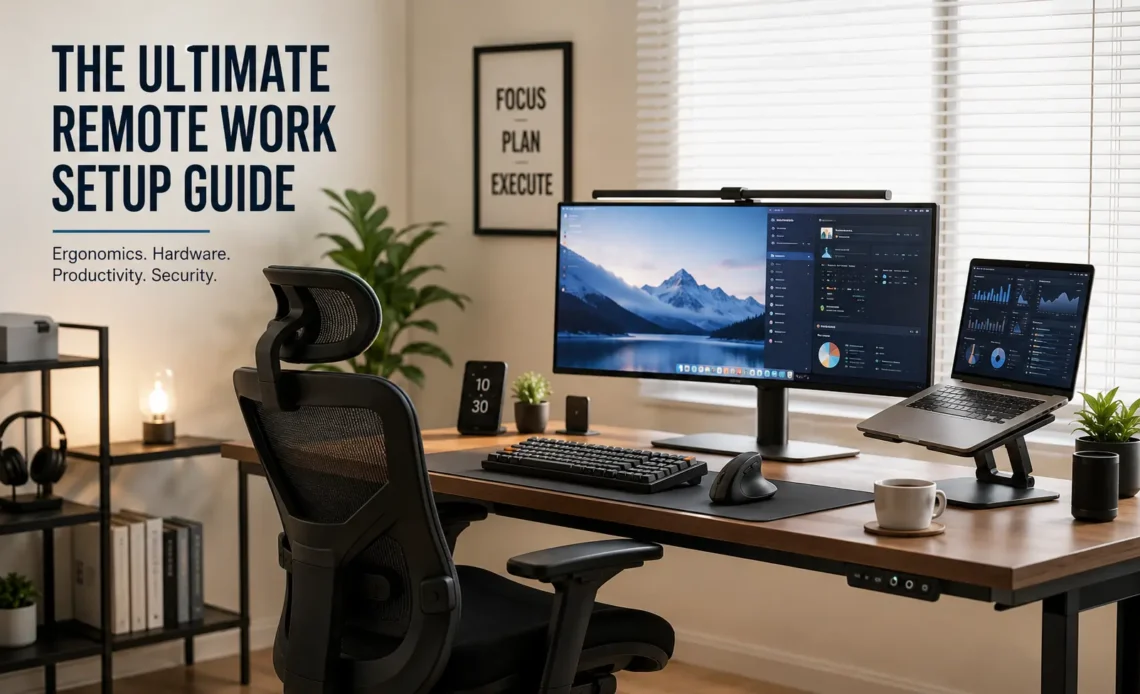
The modern workplace has officially broken free from traditional office walls. Millions of professionals now build their careers from home, cafes, and co-working spaces. However, transitioning to a remote workspace involves much more than simply opening your laptop on a kitchen table.
A poorly planned environment leads to physical fatigue, constant distractions, and digital burnout. To stay productive and healthy over the long term, you need a highly strategic remote work setup.
This comprehensive guide covers everything required to build a high-performing physical and digital workspace. We will explore advanced ergonomics, essential hardware, digital security tools, and role-specific layouts that your competitors often overlook.
The Physical Workspace: Ergonomics First
Most generic remote work guides tell you to buy a comfortable chair, but they fail to explain the actual science of ergonomics. Your physical setup directly impacts your energy levels, spinal health, and daily productivity. Without proper alignment, repetitive strain injuries can quietly develop over time.
The Golden Rules of Ergonomic Alignment
Proper ergonomic alignment relies on the rule of 90-degree angles. When sitting at your desk, your elbows should rest comfortably at a 90-degree angle while typing, preventing strain on your forearms and shoulders. Your knees must also form a 90-degree angle, with your feet resting completely flat on the floor.
Monitors require precise positioning to prevent chronic neck pain. The absolute top of your screen should sit exactly at, or slightly below, your direct eye level. This positioning ensures your neck remains neutral rather than constantly tilting downward.
Additionally, the screen must sit roughly an arm’s length away from your face to shield your eyes from unnecessary fatigue.
       [Monitor] -> Top of screen at or slightly below eye level
        /     \
       /       \  ~ Arm's length distance
      /         \
   [Eye]-------[Screen Center]

     |
     | (Neck Neutral)
  [Elbow] -> 90° Angle while typing
     |
  [Knees] -> 90° Angle, feet completely flat on the floor
Choosing the Right Chair vs. Standing Desks
Your chair serves as the absolute foundation of your home office. Standard kitchen or dining chairs lack proper lumbar curves, which causes your spine to slouch forward. You should invest in a dedicated ergonomic chair that offers adjustable armrests, depth control for the seat pan, and explicit lower-back support. Materials like breathable mesh are highly recommended to prevent heat buildup during long, intense shifts.
To balance out extended periods of sitting, consider integrating an adjustable pneumatic standing desk into your room layout. Alternating between sitting and standing every 45 minutes stimulates blood circulation and reduces stress on your lumbar spine. If space or budget is tight, placing a compact walking pad under your standing desk can help you easily hit your daily step goals while reviewing documents or attending low-stakes team meetings.
Lighting and Eye Comfort
Poor home office lighting causes subtle, chronic eye strain that mimics midday fatigue. Avoid placing your monitor directly in front of a bright window, as the heavy contrast forces your eyes to work twice as hard. Instead, position your desk layout perpendicular to windows so natural light diffuses evenly across your workspace.
For evening shifts, add a dedicated monitor light bar over your display. These bars illuminate your desk space directly without casting glare on the screen.
To manage digital screen fatigue, practice the 20-20-20 rule. Every 20 minutes, pause and look at an object at least 20 feet away for a full 20 seconds to allow your ocular muscles to relax completely.
The Essential Hardware Ecosystem (The Command Center)
Your hardware configuration forms the core engine of your daily workflow. Choosing components that match your specific professional needs prevents frustrating performance bottlenecks and daily tech issues.
Computing Power
The computer you use determines how smoothly your apps run every day. Knowledge workers who focus on documents, spreadsheets, and web apps need a machine with at least 16GB of RAM and a modern Intel i5 or AMD Ryzen 5 processor.
If your work involves software engineering, media editing, or data science, upgrade to 32GB of RAM and a dedicated graphics processor. Choosing a laptop with multiple USB-C or Thunderbolt ports makes it much easier to connect high-speed external hubs and multiple displays without using a messy pile of adapters.
Visual Real Estate
Relying solely on a small 13-inch laptop screen limits your multitasking efficiency. Expanding your visual real estate with an external display allows you to organize multiple applications side by side.
A dual-monitor setup is highly effective for separating your primary workspace from communication channels like Slack or email.
Alternatively, a single 34-inch ultrawide monitor provides an expansive canvas without a distracting bezel running down the middle. Look for displays that feature built-in blue light filters and flicker-free technology to protect your eyes during long workdays.
+------------------------------------+

|                                    |
|       34" Ultrawide Monitor        |   <- Maximizes visual workspace,
|                                    |      eliminates center bezels
+------------------------------------+
Tactile Input Devices
Standard laptop keyboards and flat trackpads force your hands and wrists into awkward, unnatural angles. Over time, this repetitive strain can lead to painful conditions like Carpal Tunnel Syndrome.
Switching to an ergonomic mechanical keyboard with tactile switches provides a more responsive and comfortable typing experience. Pair your keyboard with a vertical ergonomic mouse. Vertical mice allow your hand to rest in a natural, neutral “handshake” position, which significantly reduces muscle tension in your forearm and wrist.
